Landis+Gyr E470 smart meter: how to read it
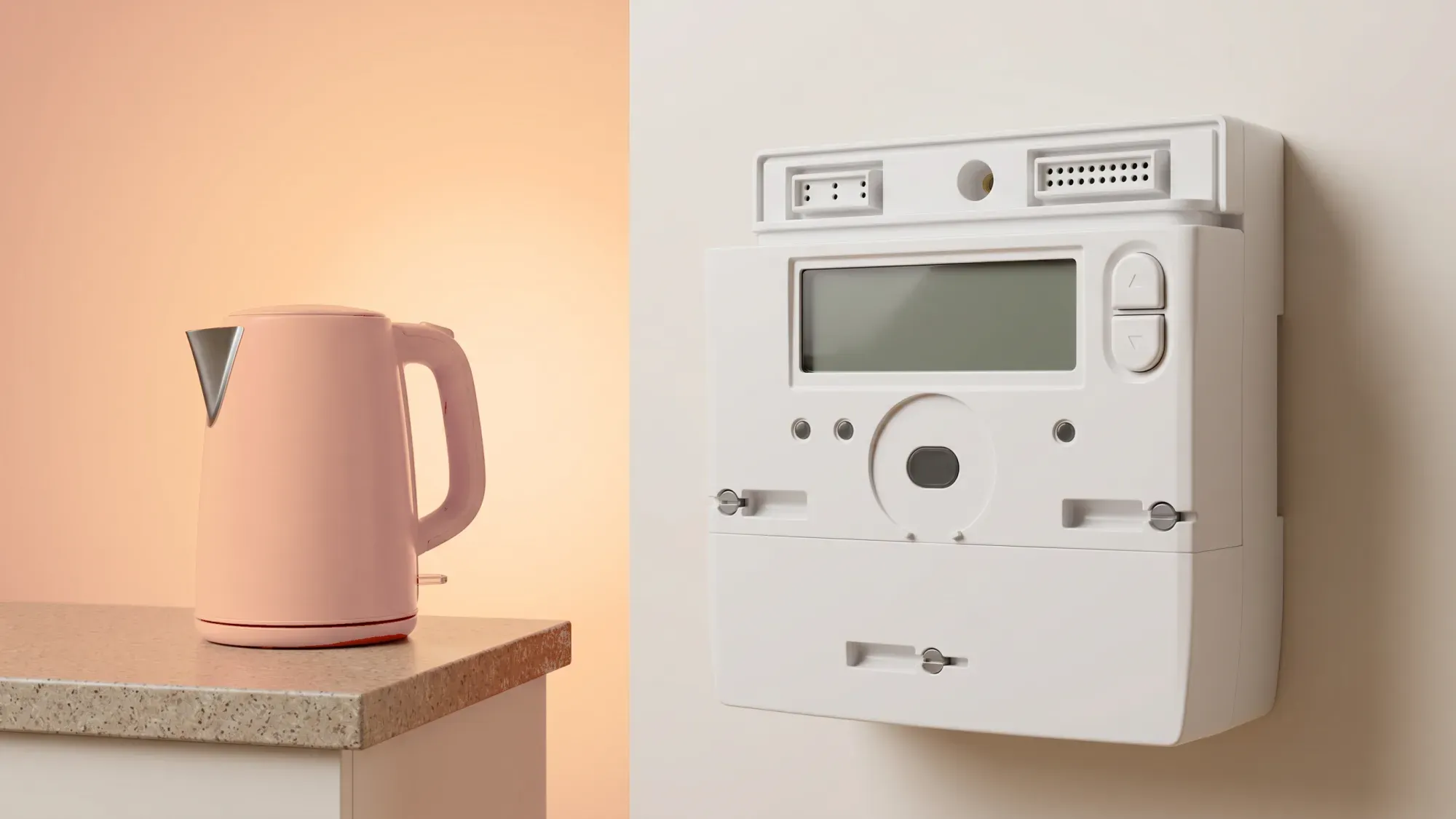
The Landis+Gyr E470 is a common SMETS2 electricity smart meter found in many UK homes, designed to make managing your energy simpler and more transparent. This guide will help you understand its features, how to read its display, and troubleshoot common issues, empowering you to take control of your energy usage.
Understanding your Landis+Gyr E470 smart meter is key to managing your home's energy. Fuse Energy provides clear visibility of your energy usage data through its app, helping you stay on top of your bills. Click here to switch to Fuse Energy today.
Enter your address to get a quote and see how much you could save
What is the Landis+Gyr E470 smart meter?
The Landis+Gyr E470 is an electricity smart meter widely deployed across the United Kingdom. Smart meters like the E470 are a key part of modernising the energy grid, allowing for automatic energy usage readings and remote management for homes. They provide consumers with greater visibility and control over their energy consumption, which can help manage bills.
Understanding your electricity smart meter
An electricity smart meter measures your home's electrical energy consumption in kilowatt-hours (kWh). Unlike older traditional meters that required manual readings, smart meters automatically send your usage data to your energy supplier. This helps reduce the reliance on estimated bills by basing them on actual consumption.
Why the E470 is common in UK homes
The Landis+Gyr E470 is a popular choice for energy suppliers primarily because it is a SMETS2 (Smart Metering Equipment Technical Specifications, second generation) meter. SMETS2 meters are the current standard for new installations and are designed to be interoperable. This means they can maintain their smart functionality even if you switch energy suppliers, a significant improvement over some earlier models. They communicate via the secure national Data Communications Company (DCC) network.
Key features and functions of your E470
The E470 smart meter offers several features aimed at simplifying energy management for homeowners.
Automatic meter readings explained
One of the primary benefits of the E470, as with all smart meters, is its ability to automatically send meter readings to your energy supplier. This removes the hassle of manual submissions and generally contributes to more accurate billing. The meter uses a secure national network, managed by the DCC, to communicate with your supplier.
Understanding your In-Home Display connection
Your E470 smart meter typically connects wirelessly to an In-Home Display (IHD). This small device shows your energy consumption in near real-time, often in both kWh and pounds and pence. The IHD helps you monitor your usage and identify opportunities to save energy, giving you immediate feedback on how your actions affect your energy consumption. It's important to note that IHD issues do not necessarily mean your meter is offline.
How to read your Landis+Gyr E470 smart meter
Reading your Landis+Gyr E470 is straightforward once you know which buttons to press. Most E470 meters have two buttons, usually labelled 'A' and 'B'.
Step-by-step guide for single-rate tariffs
For single-rate tariffs, you typically need one reading, which represents your total electricity consumption.
- Wake the display: If the screen is blank, press either the 'A' or 'B' button to wake it up.
- Navigate to the reading: Repeatedly press the 'A' button. The meter will cycle through various screens. Look for a screen that displays "Rate 01 Act Imp" or "Total Active Import" followed by a number and "kWh". This number is your current meter reading.
- Record the reading: Note down all the digits before the decimal point. Ignore any digits after the decimal point.
Getting readings for Economy 7 tariffs
Economy 7 tariffs have different rates for peak (day) and off-peak (night) electricity usage, so you'll need two separate readings.
- Wake the display: Press either the 'A' or 'B' button to activate the screen.
- Get rate 1 (Peak/Day): Hold button 'B' to open the Tariff Display List. The first screen will show the first rate.
- Get rate 2 (Off-Peak/Night): Press button 'A' to move to the next rate.
- Record both values: Write down both readings, ignoring any digits after the decimal point.
What to do if your meter is offline
If your E470 meter isn't sending readings automatically, it might be offline. While smart meters are designed to communicate automatically, sometimes issues can arise.
- Check the display: Ensure the meter display is active and not blank. For an electricity meter, an unresponsive display is a strong indicator of a fault.
- Look for communication lights: Some meters have indicator lights that show communication status. A flashing WAN (Wide Area Network) light might indicate an issue with sending data to your supplier.
- Contact your supplier: If the issue persists, contact your energy supplier. They can remotely diagnose the problem and advise on next steps, which might include a remote reset or an engineer visit.
Understanding the E470 display and symbols
The E470's display provides various pieces of information through icons and messages. Familiarising yourself with these can help you understand your energy usage and identify potential issues.
Common icons and their meanings
While specific icons can vary, common symbols on smart meter displays often include:
- kWh: Indicates that the displayed number is an electricity reading in kilowatt-hours.
- Signal strength indicator: Similar to a mobile phone signal bar, this shows the strength of the meter's communication with the network.
- Currency symbol (£): May appear alongside usage figures to show cost.
- Active energy usage LED: A single red LED that flashes to indicate energy is being consumed.
Interpreting error codes and messages
If your meter encounters a problem, it might display an error code or message. For less common or numerical error codes, it's best to consult your energy supplier. They have access to detailed diagnostic information for the E470 and can interpret these messages accurately.
Troubleshooting common Landis+Gyr E470 issues
While smart meters are generally reliable, you might occasionally encounter issues. Many common problems have simple troubleshooting steps you can try before contacting your supplier.
Dealing with a blank or unresponsive screen
A blank screen on your E470 is a fault indicator for an electricity meter.
- Press a button: If the screen is blank, try pressing a button.
- Check for power outages: A local power cut will affect the meter's display.
- Wait a few minutes: Sometimes the display may recover on its own.
- Contact your supplier: If the screen remains blank or unresponsive after these steps, contact your energy supplier. They can remotely diagnose the issue.
What to do if your meter is not sending readings
If your energy supplier informs you that they aren't receiving readings from your E470, or you notice your IHD isn't updating, try these steps:
- Check your IHD: Ensure your In-Home Display is powered on and located close enough to the meter to maintain a connection. Restarting your IHD can help resolve display issues, but it does not re-establish communication with the meter itself.
- Check for flashing lights on the meter: A flashing WAN light on the meter's communication hub can indicate it's trying to send data.
- Contact your energy supplier: If the meter continues not to send readings, your supplier can perform a remote diagnostic check. They may be able to re-establish communication or determine if an engineer visit is required.
Addressing misconceptions: electric meter batteries
It's a common misconception that electric smart meters like the E470 have user-replaceable batteries. Electric meters are powered directly from the mains electricity supply. The internal battery in an electric smart meter is not user-serviceable or replaceable. If this internal battery (which typically powers the meter's clock or memory during power outages) depletes or fails, the entire meter requires replacement by your energy supplier. Gas meters, however, are battery-powered, and their batteries are not user-replaceable; a depleted battery means the entire gas meter needs replacing.
Differentiating SMETS1 and SMETS2 E470 meters
Understanding whether you have a SMETS1 or SMETS2 version of the Landis+Gyr E470 is important, especially if you're considering switching energy suppliers.
Visual cues to identify your SMETS version
While both generations can be E470 models, there can be subtle visual differences. The only definitive way to confirm your SMETS version is to contact your energy supplier. You can also find your meter's serial number (MSN) printed on the casing.
Why your SMETS version matters for functionality and switching
The main difference between SMETS1 and SMETS2 meters lies in how they communicate with energy suppliers.
- SMETS1 meters: These older models originally communicated only with the supplier who installed them. If you switched suppliers, a SMETS1 meter might lose its smart functionality, meaning you'd have to submit readings manually again. Many SMETS1 meters have since been enrolled onto the national DCC network, allowing them to retain smart functionality after a switch.
- SMETS2 meters: These are designed to be fully interoperable and communicate via the secure national DCC network. This ensures that your meter retains its smart functionality, including automatic readings, even when you switch energy suppliers. This interoperability is a key regulatory objective set by Ofgem.
When to contact your energy supplier for E470 support
While this guide provides many self-help tips, there are times when contacting your energy supplier is necessary.
When self-help isn't enough
You should contact your energy supplier if:
- Your meter's screen remains blank or unresponsive despite troubleshooting.
- Your meter is consistently not sending readings, and you've tried basic troubleshooting.
- You see persistent error messages or codes that you cannot interpret.
- You suspect a fault with the meter itself, such as unusual noises or physical damage.
- You need to confirm your meter's SMETS version or its communication status.
- You have concerns about inaccurate billing that you believe are linked to your meter.
Preparing for your support call
To make your support call as efficient as possible, have the following information ready:
- Your account number and address.
- Your meter's serial number (MSN), usually found on the front of the meter.
- A description of the issue, including any error messages or codes displayed.
- Any troubleshooting steps you've already attempted.
Empowering customers with knowledge about their smart meter helps them take control of their energy usage. Fuse Energy provides clear visibility of energy usage data collected by smart meters like the Landis+Gyr E470 through its app. For complex smart meter issues that self-help guides cannot fully resolve, Fuse offers 24/7 human support, providing a safety net for customers. Switching to Fuse is quick and easy, giving you access to competitive tariffs and tools to manage your energy effectively. Click here to switch to Fuse Energy today. You can also learn more about our mission to make energy simpler and fairer here.
Disclaimer
For the avoidance of doubt, this article is provided for informational purposes only and is not intended to constitute legal or financial advice. The author and/or Fuse Energy shall not be responsible for any losses arising out of any reliance on the information contained herein.